 Sizewise
Why is Android Studio taking so much space on my Mac?
Android Studio keeps its software development kit (SDK) and your emulators outside the app. Their folders grow as you install Android versions. Here is what’s in each, and how to remove what you don’t use with Android Studio’s own tools.
Find Android Studio’s SDK and emulator files
Start with these two folders:
- The SDK
~/Library/Android/sdkholds the Android platform versions, build tools, the Native Development Kit (NDK), and the system images emulators start from.A package you remove doesn’t come back until you install it again, and emulators that use a removed system image won’t start.- Emulators
~/.android/avdholds each virtual device you made, with its installed apps, settings and emulated memory-card storage. Google says what’s in it is mostly large disk images.A deleted emulator is gone with everything in it.
Either folder can be somewhere else. Android Studio’s SDK Manager shows the Android SDK Location in use, and the ANDROID_AVD_HOME setting moves the emulators.
Building apps adds more. Gradle keeps its caches in ~/.gradle and cleans them itself, removing downloads unused for 30 days and generated files unused for 7 days. Each project has its own build folders, and Android Studio keeps its own caches in ~/Library/Caches/Google, in a folder for each version you’ve run.
Remove SDK packages you don’t use
Use the SDK Manager to uninstall packages:
- In Android Studio, choose Tools > SDK Manager.
- Clear the checkbox next to each package you no longer need, such as old platform versions and system images.
- Click Apply.
Leave the licenses folder inside the SDK. Google says Gradle needs it to download missing packages your projects depend on.
Delete emulators you don’t use
In Android Studio’s Device Manager, click the emulator’s menu and choose Delete. To keep the emulator but clear what’s installed on it, choose Wipe Data. Show on Disk shows its files in Finder.
Advice to skip
Let Android Studio manage its own files:
- Deleting folders inside the SDK in Finder: The SDK Manager keeps track of what’s installed, so remove packages there.
- Deleting an emulator’s files in Finder: Device Manager removes the device and its settings file together.
Inspect Android Studio’s storage in Sizewise
Scan your home folder to compare Android Studio’s files with your other storage:
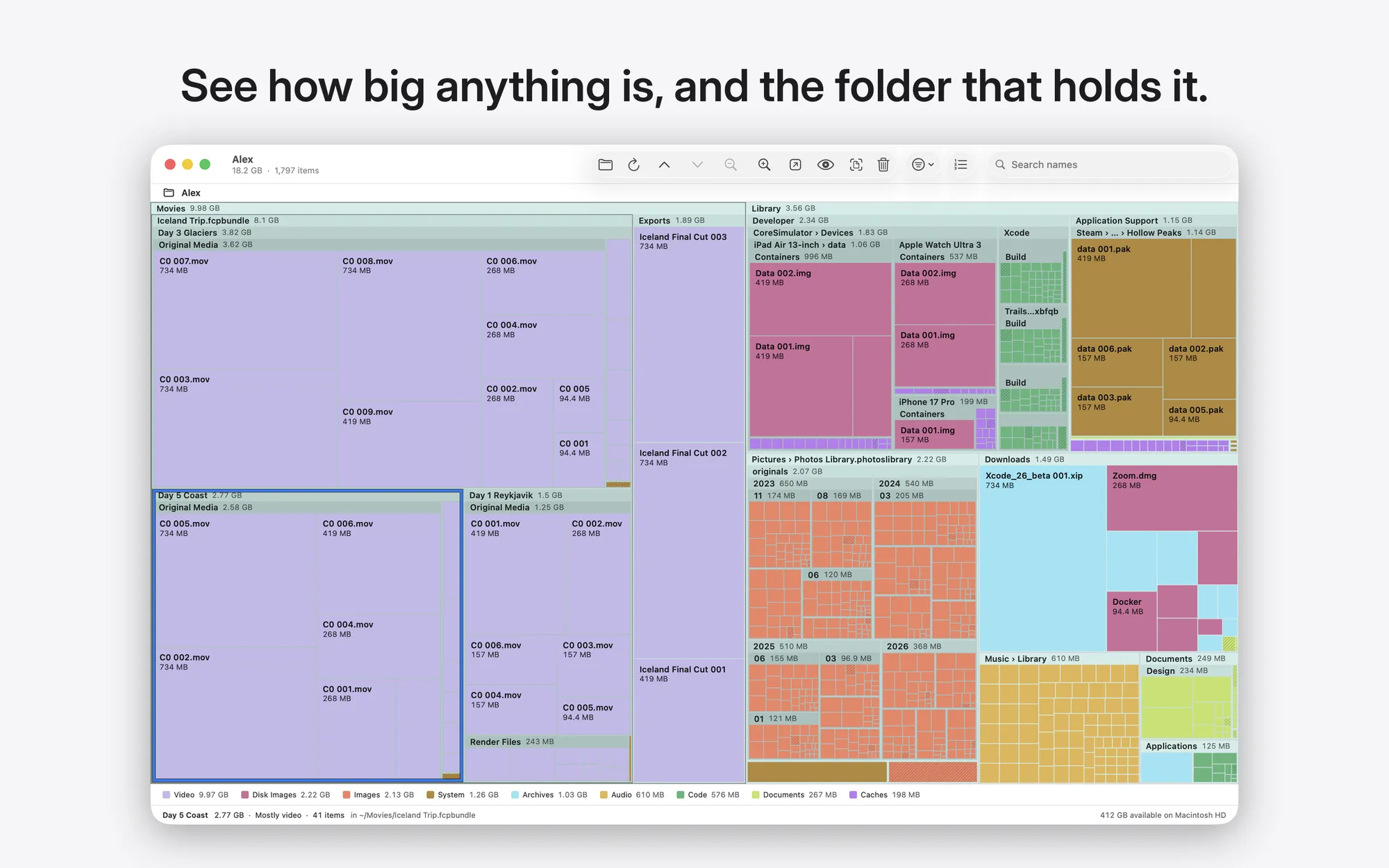
- In Sizewise, choose File > Scan Folder and choose your home folder, or scan your whole disk to see Android Studio’s folders next to everything else.
- Each system image and emulator is a rectangle sized by the space it takes. Hover over one to see its name and size.
- Lock a folder with a click to see what deleting it would free.
Sizewise shows where the space is, and you decide what goes. It asks before every move, and moves files only to the Trash, so you can put them back.
Try it on your Mac
Scanning, saving scans and opening scans are free, with no account. A license costs $12.99 USD once, plus tax where it applies, and adds Move to Trash, Compare with Saved Scan… and Show Changes. Sizewise needs macOS Sequoia or later. See pricing and license details.