 Sizewise
Mac storage full, but you can’t find what’s using it?
Storage settings says your disk is nearly full, but the folders you can see in Finder don’t add up to it. The used space can be in places Finder doesn’t show, or in forms that don’t look like files. Here is where to look and how to get space back without guessing.
Why the numbers don’t add up
Folder sizes and disk totals measure different things. These differences can explain the gap:
- Finder hides the Library folders: Your home folder’s Library holds caches, app data, phone backups, Mail and Messages attachments and developer tools, and Finder doesn’t show it unless you press Shift-Command-Period or choose Go > Library while holding Option.
- Some folders need permission: macOS restricts access to Mail, Messages, Safari and other apps’ data. Give Sizewise Full Disk Access in System Settings > Privacy & Security to include more folders in its scan.
- Some space isn’t in a folder you can see: Local snapshots aren’t files at all, and swap and a downloaded update sit on parts of the disk Finder doesn’t show. What’s in System Data goes through them.
- Finder counts some used space as available: Caches, iCloud files and local snapshots that macOS can clear when it needs the room are called purgeable space, and Disk Utility shows less free space than Finder because of it.
- Copies share space: Apple File System (APFS) lets a duplicate share the original file’s stored data, called blocks. Those copies can make folder sizes add up to more than the space they use on disk.
- Some files are smaller than they look: A virtual disk, such as Docker’s, can show its maximum size in Finder while using far less.
Find storage outside your visible folders
Start with the folders and apps that match how you use your Mac:
- Developer tools
- Xcode keeps build files, archives and simulators under
~/Library/Developer.What each Xcode folder holds, and how to clear it, and what Android Studio keeps. - Docker
- Docker Desktop keeps its Linux containers and images in one disk image file,
Docker.raw.How to shrinkDocker.raw. - iPhone and iPad backups
- Backups made with Finder, in
~/Library/Application Support/MobileSync/Backup.In Finder, select your device, then click Manage Backups. - Messages
- Photos, videos and files sent and received in Messages, in
~/Library/Messages/Attachments.In Messages > Settings > General, setting Keep messages to anything but Forever removes older conversations with their attachments. With Messages in iCloud, deleting a conversation on your Mac deletes it on your other devices too. - Photos
- The Photos library in your Pictures folder, which keeps full-size originals unless you tell it not to.With iCloud Photos on, choose Photos > Settings > iCloud > Optimize Mac Storage. More on Photos and iCloud Drive.
- Caches
- Files apps keep to start faster, in
~/Library/Caches.Use the app’s own cache-clearing setting when available. An app may rebuild its cache, but not every app recreates every file. How to clear one app’s cache. - Other users
- Storage settings counts other accounts on the Mac and the Shared folder as Other Users & Shared.Remove an unused account in System Settings > Users & Groups. Choosing to delete its home folder also deletes its files, so back them up first.Keeping the home folder, or saving it as a disk image, keeps its storage in use until you delete it. What else fills Other Users & Shared.
Deleted files, but the space didn’t come back
Check what still holds the data:
- The Trash still holds them: Space comes back when you empty it.
- A local snapshot still holds them: Time Machine keeps hourly snapshots on your Mac. A deleted file stays in them until Time Machine removes the snapshots. Apple says Time Machine keeps each hourly snapshot for 24 hours, or until macOS needs the space. To list them, run
tmutil listlocalsnapshots /in Terminal. - An app still has them open: A file an app is still using keeps its space until the app quits. Quitting the app, or restarting your Mac, gives it back.
- A copy shares them: Deleting one of two copies made in Finder frees only what the copies don’t share.
Inspect disk usage in Sizewise
Scan the disk to compare folders with the storage outside the map:
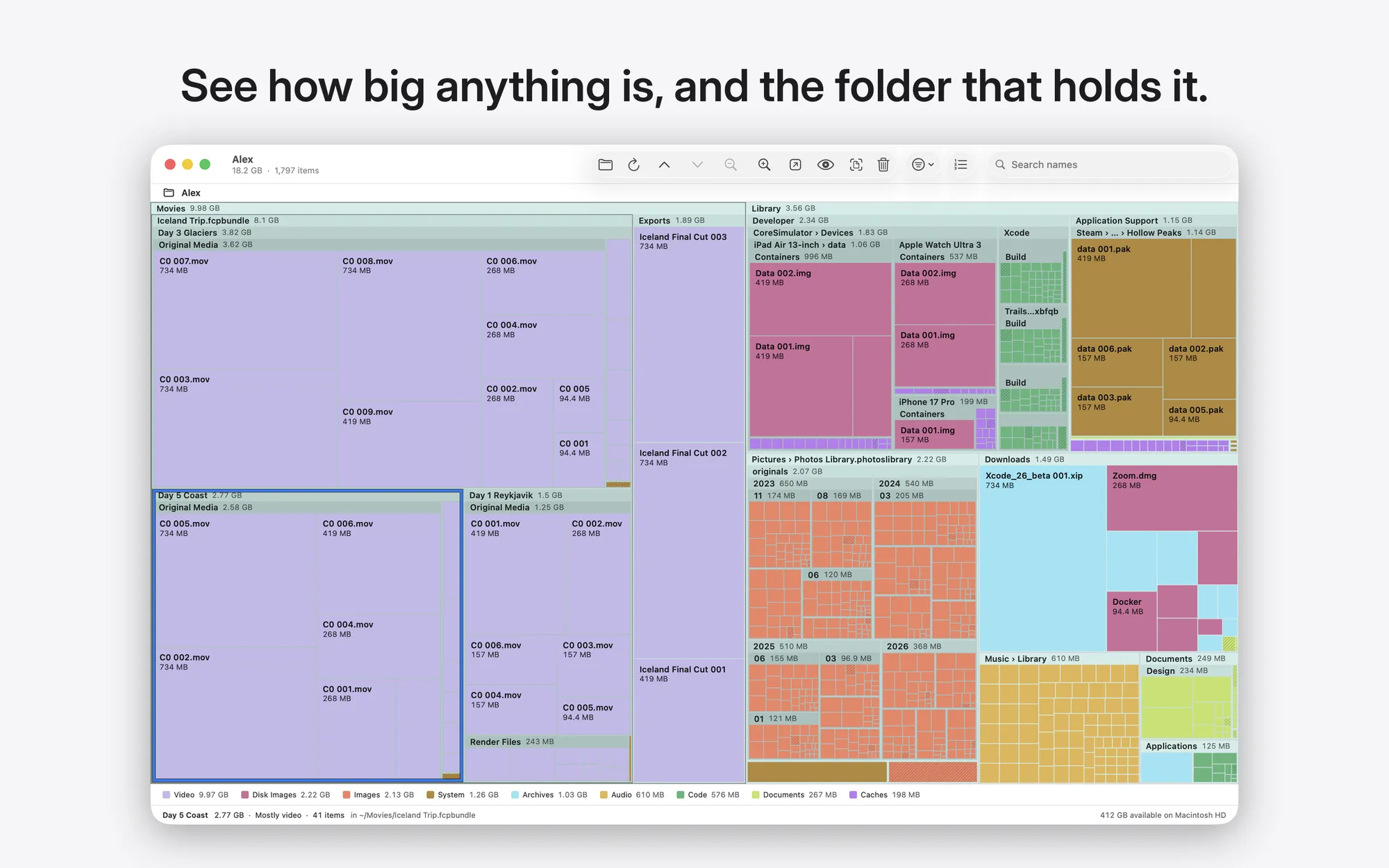
- In Sizewise, choose File > Scan Disk, then choose your startup disk. The map shows every folder Sizewise can read, Library folders included, and the biggest files are the biggest rectangles.
- If Sizewise lists folders it couldn’t read, click Set Up Full Disk Access and follow the short guide.
- Click Not in this map in the status bar to see the used space no folder shows, such as snapshots and swap, part by part, and what you can do about each part.
- Before you delete something big, lock it with a click. When deleting it would free less than its size, Sizewise says how much it would free and what keeps the rest.
Sizewise shows where the space is, and you decide what goes. It asks before every move, and moves files only to the Trash, so you can put them back.
Try it on your Mac
Scanning, saving scans and opening scans are free, with no account. A license costs $12.99 USD once, plus tax where it applies, and adds Move to Trash, Compare with Saved Scan… and Show Changes. Sizewise needs macOS Sequoia or later. See pricing and license details.