 Sizewise
Can I delete ~/Library/Caches on my Mac?
The Caches folder in your home folder’s Library stores files that apps use again. Here is what it holds, what happens when you delete it, and how to clear one app’s cache without guessing.
What the Caches folder holds
Each app keeps its own folder there. Apple’s guide for developers says the Caches folder “contains cached data that can be regenerated as needed. Apps should never rely on the existence of cache files.” It asks apps to name their folder after their bundle identifier. A folder name such as com.apple.Safari identifies the app that created it.
Apps from the Mac App Store and other sandboxed apps keep their caches in their own container instead: in the app’s folder in ~/Library/Containers, under Data/Library/Caches.
Some tools keep downloads there too. Homebrew keeps installers in ~/Library/Caches/Homebrew, and pip keeps Python packages in ~/Library/Caches/pip. How to clear those with their own commands.
What happens when you delete it
Clearing caches can free space temporarily and change how apps behave:
- Apps make their caches again: Apps that follow Apple’s guidance rebuild what they need, so the space comes back to you only until they fill it again. An app may not rebuild every cache file.
- Apps are slower for a while: Howard Oakley, who tests how macOS manages disks, gives an example: without its caches, the Finder would be much slower in Gallery view, because Finder would need to recreate every preview.
- macOS already clears some caches: When it needs space, macOS asks the caching services it manages, and apps that mark their cache files as purgeable, to free it. Oakley found that macOS manages only the services Apple lists, so other apps’ caches stay until the app or you remove them.
Clear one app’s cache
Check the app’s own guidance, then clear only the cache you recognize:
- If the app has its own setting to clear its cache, use that.
- Otherwise, quit the app first.
- In Finder, choose Go > Go to Folder, type
~/Library/Caches, and press Return. For an app from the Mac App Store, open~/Library/Containers, then the app’s folder, thenData/Library/Caches. - Move the cache files you chose to the Trash. Never remove the app’s container. Open the app and check your work before emptying the Trash.
Advice to skip
Avoid broad cleanup that affects several apps at once:
- Emptying the whole folder at once: Every app rebuilds at the same time, the space fills up again, and you can’t tell which app a problem comes from.
- Deleting caches in
/Libraryor/Systemwith administrator rights: Those belong to macOS and other users’ apps. - Treating a cache as the reason a disk is full: Look at what takes the space before you delete caches. The biggest folders may be elsewhere, such as Xcode’s folders,
Docker.rawor a Photos library.
Measure your app caches in Sizewise
Compare cache folders before choosing one to clear:
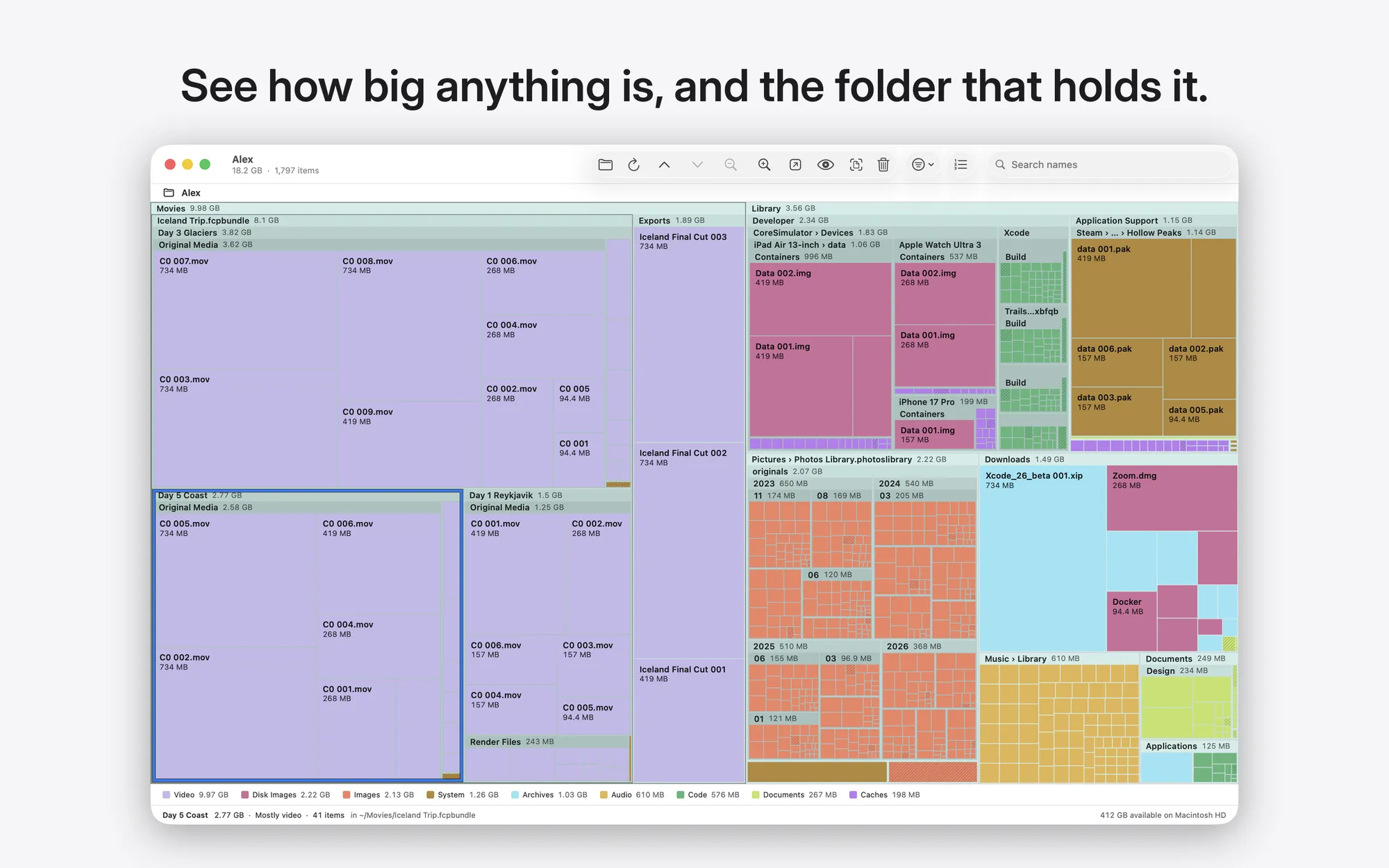
- In Sizewise, choose File > Scan Folder and choose your home folder.
- Click Library to lock it, then press ⌘+ to zoom in. Do the same with Caches.
- Each app’s cache is a rectangle sized by the space it takes. Hover over one to see its name and size.
Sizewise shows where the space is, and you decide what goes. It asks before every move, and moves files only to the Trash, so you can put them back.
Try it on your Mac
Scanning, saving scans and opening scans are free, with no account. A license costs $12.99 USD once, plus tax where it applies, and adds Move to Trash, Compare with Saved Scan… and Show Changes. Sizewise needs macOS Sequoia or later. See pricing and license details.