 Sizewise
Why is Docker.raw so big on my Mac?
Docker Desktop keeps its Linux containers and images in one file, Docker.raw. It can show up in Finder as 64 GB or more, even on a Mac with a small disk. Here is what that number means, how much space it takes, and how to shrink it with Docker’s own tools.
What Docker.raw is
Docker explains that, unlike Docker on Linux, Docker Desktop stores Linux containers and images “in a single, large ‘disk image’ file in the Mac filesystem.” It’s in ~/Library/Containers/com.docker.docker/Data/vms/0/data, and Docker Desktop’s Settings > Resources > Advanced shows where yours is.
Its size isn’t the space it takes
Docker.raw is a sparse file: it has a maximum size, and it takes only the space Docker has written to it. Docker notes that “many tools report the maximum file size, not the actual file size.” To see both in Terminal, run ls -klsh on the file. In Docker’s example, the first number, the space it takes, is about 2.3 GB, and ls lists the file’s maximum size as 64 GB.
So a big number in Finder’s size column isn’t necessarily what’s filling your disk. Finder’s Get Info shows the space it takes on disk too.
How to shrink it
With Docker Desktop running, in Terminal:
- Run
docker system dfto see how much images, containers, local volumes and build cache each take. - Run
docker system prune. Read its warning before confirming. By default, it removes:- Stopped containers and their writable data.
- Networks no container uses.
- Dangling images, which have no tag and no container using them.
- Unused build cache.
Add
-ato remove all images no container uses, including images that still have tags. The command can also delete images you built but never pushed. Push them or save them withdocker savefirst. - Volumes hold data, such as databases, so
docker system pruneleaves them alone. Its--volumesoption deletes unused anonymous volumes and their data. Remove a volume you no longer need withdocker volume rmand its name, after checking what’s in it. You can’t restore a deleted volume without a backup. - Docker says the space comes back to the Mac when you delete images, and can take a few minutes. To ask for it at once, run
docker run --privileged --pid=host docker/desktop-reclaim-space.
Set a smaller maximum
Settings > Resources > Advanced has a slider for the disk image’s maximum size. Docker warns that “when you reduce the maximum size, the current disk image file is deleted, and therefore, all containers and images are lost.” Push or export anything you need first. A pushed or saved image doesn’t include the data in its volumes, such as a database, so Docker says to back that up separately.
Don’t delete Docker.raw in Finder. Docker Desktop would start over with an empty disk image, and every container and image in the old one would be gone. To move it to another disk, use the location setting in the same Settings section.
How to see what it takes on your Mac
Compare Docker’s disk usage with the rest of your Mac:
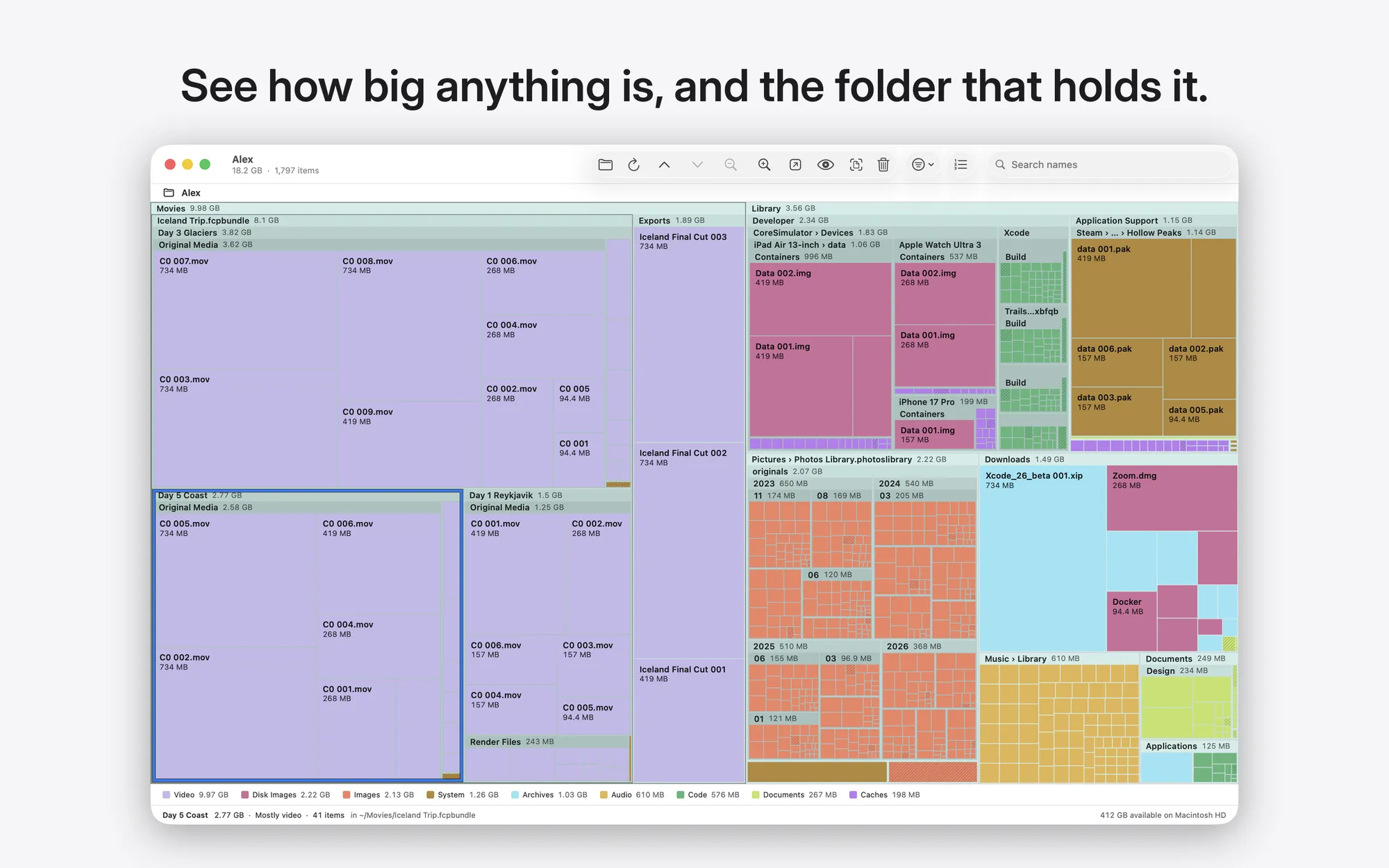
- macOS keeps other apps’ data private, so first give Sizewise Full Disk Access: click Set Up Full Disk Access in its window and follow the short guide.
- Choose File > Scan Disk, then your startup disk. Sizewise sizes every file by the space it takes on disk, so
Docker.raw’s rectangle shows the space it takes, next to everything else on your Mac. - Sizewise keeps the last scan of the folders you scanned recently. When you scan that disk again, Sizewise opens the saved map and checks for changes. Its change summary can name up to three locations responsible for the largest changes.
Sizewise shows where the space is, and you decide what goes. It asks before every move, and moves files only to the Trash, so you can put them back.
Try it on your Mac
Scanning, saving scans and opening scans are free, with no account. A license costs $12.99 USD once, plus tax where it applies, and adds Move to Trash, Compare with Saved Scan… and Show Changes. Sizewise needs macOS Sequoia or later. See pricing and license details.