 Sizewise
Why is Xcode taking up so much space?
Xcode keeps more than the app itself. Its storage includes:
- Build files and indexes for your projects.
- Archives you saved for distribution.
- Support files for connected devices.
- Simulators, their apps and their data.
The guide below explains what each folder holds and what you lose when you delete it.
Quit Xcode and Simulator first.
Review Xcode’s storage folders
Check what you still need before clearing these folders:
- DerivedData
~/Library/Developer/Xcode/DerivedDataholds each project’s build products and indexes. If you moved it in Xcode > Settings > Locations, look there instead.Delete a project’s subfolder, or the whole folder. Apple’s own Xcode 26 release notes suggest clearing a project’s DerivedData as a fix for failing builds; the next build of that project starts from scratch.- Archives
~/Library/Developer/Xcode/Archivesholds every build you archived for distribution, with its dSYM files, the debug symbols that turn its crash reports into readable ones. Unlike DerivedData, a deleted archive can’t be rebuilt exactly.Delete old ones in Xcode’s Organizer (Window > Organizer). Keep any you may need to read crash reports from or ship again.- Device support
~/Library/Developer/Xcode/iOS DeviceSupportholds a folder for each device model and iOS version you’ve connected. Xcode uses them to debug on those devices and to make their crash logs readable.Delete the versions you no longer need. Xcode makes a version’s folder again when you connect a device running it. Apple’s advice: the folders are “required for symbolicating crash logs from devices running the corresponding version,” so keep any version you still read crash logs from.- Simulators
~/Library/Developer/CoreSimulator/Devicesholds each simulated device and its apps and data.Runxcrun simctl delete unavailablein Terminal to delete the simulators the current Xcode version can no longer use. This deletes those simulators with the apps and data in them.xcrun simctl help deletedescribes it.- Simulator runtimes
- Each iOS, watchOS, tvOS or visionOS version you can simulate is a separate download, kept in
/Library/Developer/CoreSimulator, outside your home folder.Open Xcode > Settings > Components to check each runtime’s size. Click the info button beside an unused runtime, then click Delete, as Apple describes. - Package cache
~/Library/Caches/org.swift.swiftpmholds copies of the Swift packages your projects use.Runswift package purge-cache. Packages download again the next time a project resolves them, which needs a network connection.- Xcode’s cache
~/Library/Caches/com.apple.dt.Xcodeis Xcode’s own cache folder. Apple doesn’t document what Xcode keeps there.To clear it, quit Xcode and delete what’s inside.
Other developer caches
Package managers keep a copy of everything they download. Each has its own command to clear it:
- Homebrew:
brew cleanupremoves old versions of what you installed, outdated downloads, and downloads more than 120 days old. Add--prune=allto remove cached downloads of any age. Downloads for installed packages can remain. pip and npm caches, too. - npm:
npm cache clean --forceempties npm’s download cache. - pip:
pip cache purgeempties pip’s download cache.
Why Finder’s numbers are off
A file’s size and the space it takes on disk can differ a lot, and Xcode shows it well. In one measured case, Finder’s Get Info gave Xcode 12.2 a size of 28.6 GB, while it took 15.4 GB on disk. Get Info shows both numbers. When your disk is full, the space on disk is the one that matters.
Measure Xcode’s storage in Sizewise
Scan Xcode’s folders to see their sizes and what deleting an item would free:
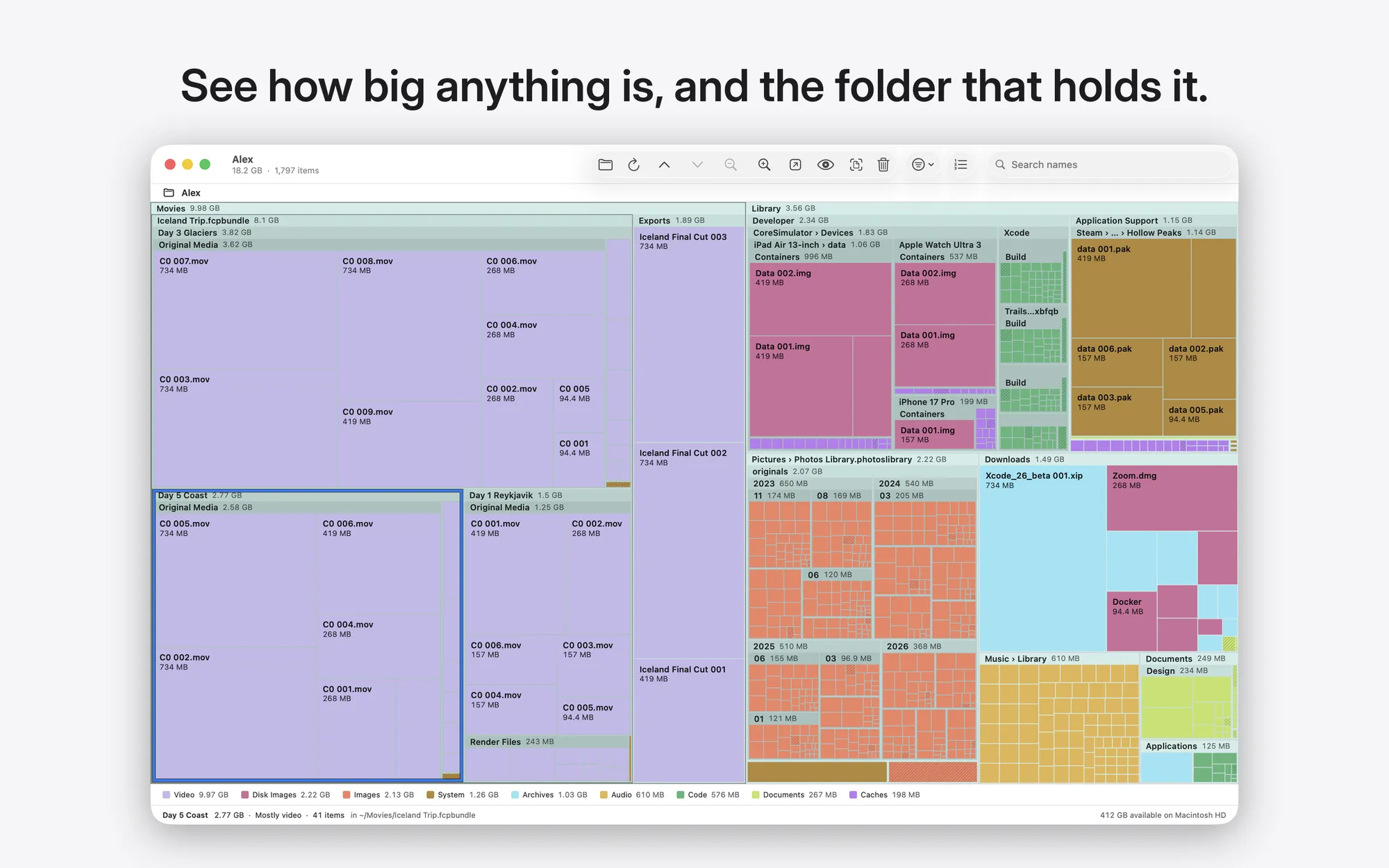
- In Sizewise, choose File > Scan Folder and choose
~/Library/Developer, or scan your whole disk to see it next to everything else. - The biggest rectangles are the biggest folders. Hover over one to see its name and size.
- Lock a folder with a click to see what deleting it would free. When that’s less than its size, Sizewise shows what keeps the rest, such as copies that share their data.
- Scan the same folder again to see how its total changed. The change summary can name up to three locations responsible for the largest changes.
Sizewise shows where the space is, and you decide what goes. It asks before every move, and moves files only to the Trash, so you can put them back.
Try it on your Mac
Scanning, saving scans and opening scans are free, with no account. A license costs $12.99 USD once, plus tax where it applies, and adds Move to Trash, Compare with Saved Scan… and Show Changes. Sizewise needs macOS Sequoia or later. See pricing and license details.