 Sizewise
Why do Photos and iCloud Drive still use space on my Mac?
Paying for iCloud doesn’t mean your photos and documents leave your Mac. Photos and iCloud Drive can keep local copies. Change their storage settings to reduce those copies. Here is how to keep smaller copies or none, without deleting anything from iCloud.
Photos
The Photos library, in your Pictures folder unless you moved it, holds your photos and videos, their edits and the Photos database in one package. Review these storage and backup settings:
- Keep smaller copies on the Mac: With iCloud Photos on, choose Photos > Settings, click iCloud, then select Optimize Mac Storage. Apple says this “stores smaller versions of your photos on your Mac when storage space is limited, and keeps the original, full-size photos in iCloud.” Download Originals to this Mac reverses it.
- Check your backups first: Apple notes that with Optimize Mac Storage on, Time Machine may not have a backup of your originals, since they’re in iCloud.
- Deleting a photo deletes it everywhere: With iCloud Photos, Apple says deleting a photo on one device removes it from every synced device. You can recover them from Recently Deleted for 30 days.
iCloud Drive
Files you download from iCloud Drive take space on your Mac. That includes Desktop and Documents when you store them in iCloud. To manage local downloads:
- Remove the download, not the file: In Finder, Control-click a file or folder in iCloud Drive and choose Remove Download. It stays in iCloud and downloads again when you open it.
- Let macOS do it: With Optimize Mac Storage on for iCloud Drive, Apple says macOS removes older local downloads when it needs space, leaving the documents in iCloud.
- Moving a file to the Trash deletes it from iCloud Drive: Apple says macOS permanently removes items you move to the Trash from iCloud Drive after 30 days, whatever your Finder settings.
Advice to skip
Use the apps’ storage controls to avoid deleting files you want to keep:
- Opening the Photos library in Finder to delete files: Apple warns: “To avoid accidentally deleting or corrupting a photo library, do not manually access or alter the contents of a library in the Finder.”
- Deleting files you only wanted off this Mac: Use Remove Download for iCloud Drive and Optimize Mac Storage for Photos instead.
Measure Photos and iCloud storage in Sizewise
Scan your home folder to see the space local copies use:
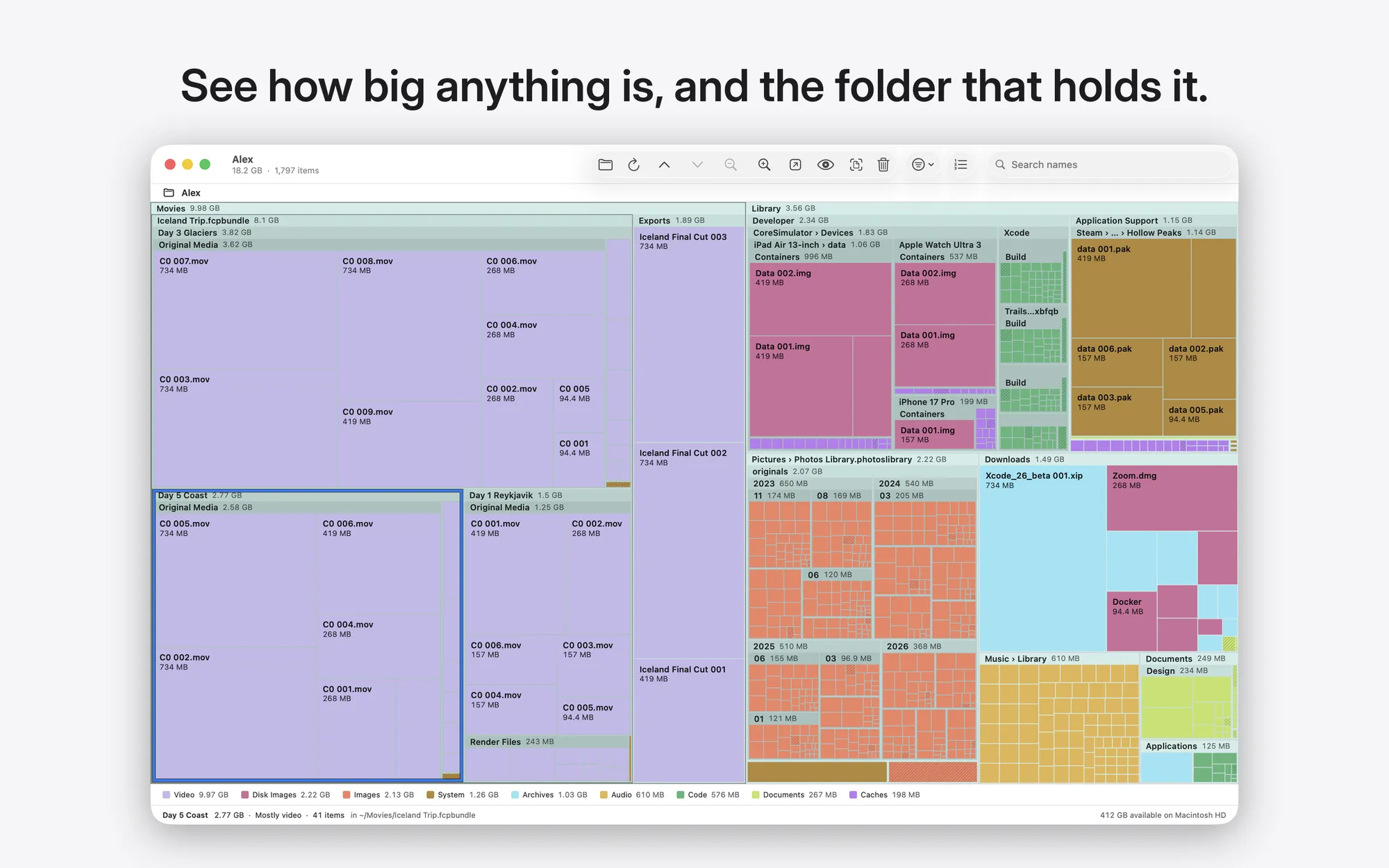
- macOS keeps the Photos library private, so first give Sizewise Full Disk Access: click Set Up Full Disk Access in its window and follow the short guide.
- Choose File > Scan Folder and choose your home folder. The Photos library is in Pictures, sized by the space it takes on this Mac, next to everything else you keep.
- After you turn on Optimize Mac Storage, choose File > Scan Again to see what changed.
Sizewise shows where the space is, and you decide what goes. It asks before every move, and moves files only to the Trash, so you can put them back.
Try it on your Mac
Scanning, saving scans and opening scans are free, with no account. A license costs $12.99 USD once, plus tax where it applies, and adds Move to Trash, Compare with Saved Scan… and Show Changes. Sizewise needs macOS Sequoia or later. See pricing and license details.