 Sizewise
Why is Other Users & Shared so big on my Mac?
Storage settings can show Other Users & Shared even on a Mac only you use. It counts what’s outside your own home folder in the Users folder: other accounts, the Shared folder, and what deleted accounts left behind. Here is where to look, and how to remove what you don’t need without losing anyone’s files.
Find other accounts’ storage
Check these folders for files outside your own account:
- Other accounts
- Each account’s home folder, in
/Users. Apple says Other Users “contains files created and modified by other user accounts on your Mac.”Sign in as that user to see what’s in it, since most of a home folder is private to its owner. - Deleted Users
- When you delete an account and choose to save its home folder as a disk image, macOS keeps the image in
/Users/Deleted Users.Once you know the files are somewhere else, such as another account or a backup, you can delete the image in Finder, then empty the Trash. - Shared
/Users/Sharedholds files every account on the Mac can use, so other people’s files may be there too.Leave what you didn’t put there until you know whose it is.- Relocated Items
- Apple says a macOS upgrade puts files it couldn’t move to their new place in
/Users/Shared/Relocated Items, with a shortcut on the desktop. The folder includes a PDF that explains the files.Read the PDF, move anything you need, then move the rest to the Trash.
Files a guest makes don’t add up over time. Apple says macOS deletes the files when the guest logs out.
Remove an account you no longer use
In System Settings > Users & Groups, click the info button next to the account, then Delete User. Apple offers three choices for the home folder:
- Save the home folder in a disk image: macOS keeps it in
/Users/Deleted Users, and the image keeps using space until you delete it. - Don’t change the home folder: It stays in
/Users, and so does its space. - Delete the home folder: Deleting the folder frees its space. You lose the files unless a backup has them.
Apple notes that if you don’t delete a user’s home folder, you can restore the user later. If you’re not sure, back up first or save the disk image.
Advice to skip
Protect other people’s files and use the account settings:
- Dragging another account’s home folder to the Trash: Use Users & Groups, which removes the account and its folder together.
- Emptying
/Users/Sharedin one go: Other accounts may keep files there. - Changing permissions to see inside other accounts, or turning off System Integrity Protection to delete stubborn folders: Sign in as the user instead, or ask them.
Inspect account storage in Sizewise
Scan the disk to see shared folders and the limits of access to other accounts:
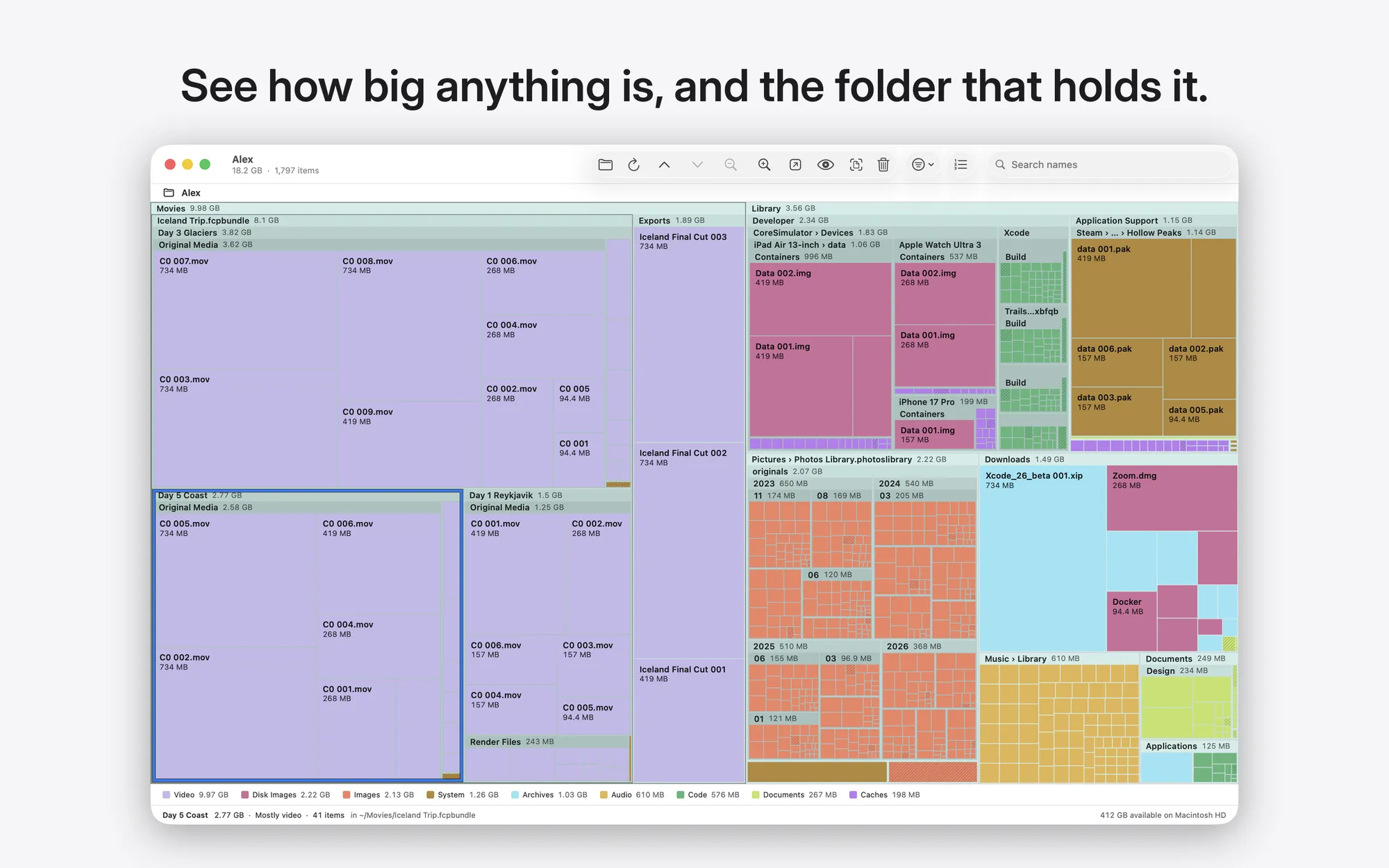
- In Sizewise, choose File > Scan Disk, then your startup disk.
- Before you zoom in, click Not in this map in the status bar. Other accounts’ files count here, because Sizewise can’t read another account’s private folders. Sizewise lists those folders among the ones it couldn’t read.
- Click the Users folder to lock it, then press ⌘+ to zoom in. The Shared folder shows up by size next to your own home folder. Other accounts’ home folders look small, since Sizewise omits their private folders.
- To measure another account, sign in to it and scan from there. Storage settings shows the total for all of them under Other Users & Shared.
Sizewise shows where the space is, and you decide what goes. It asks before every move, and moves files only to the Trash, so you can put them back.
Try it on your Mac
Scanning, saving scans and opening scans are free, with no account. A license costs $12.99 USD once, plus tax where it applies, and adds Move to Trash, Compare with Saved Scan… and Show Changes. Sizewise needs macOS Sequoia or later. See pricing and license details.